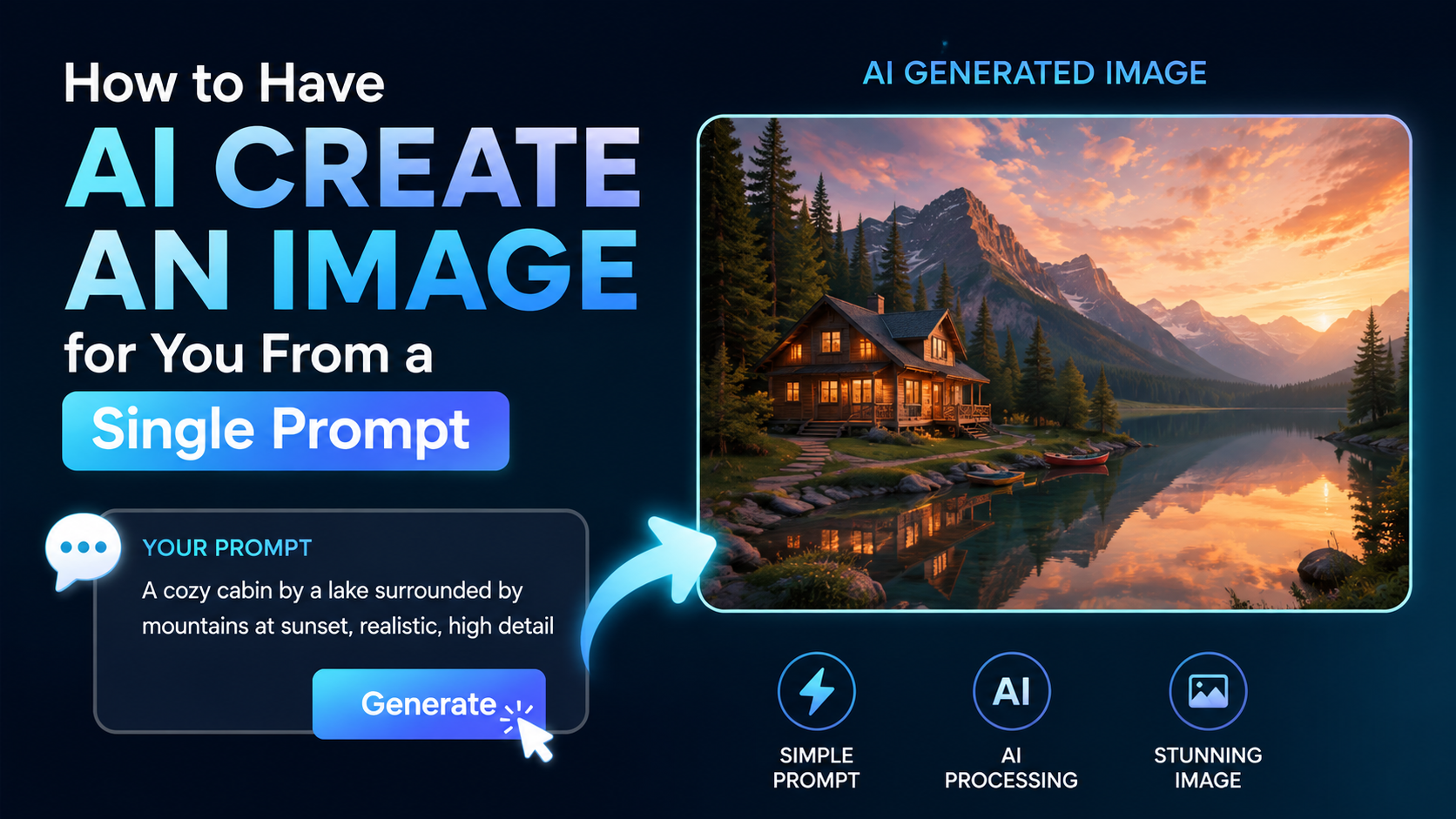

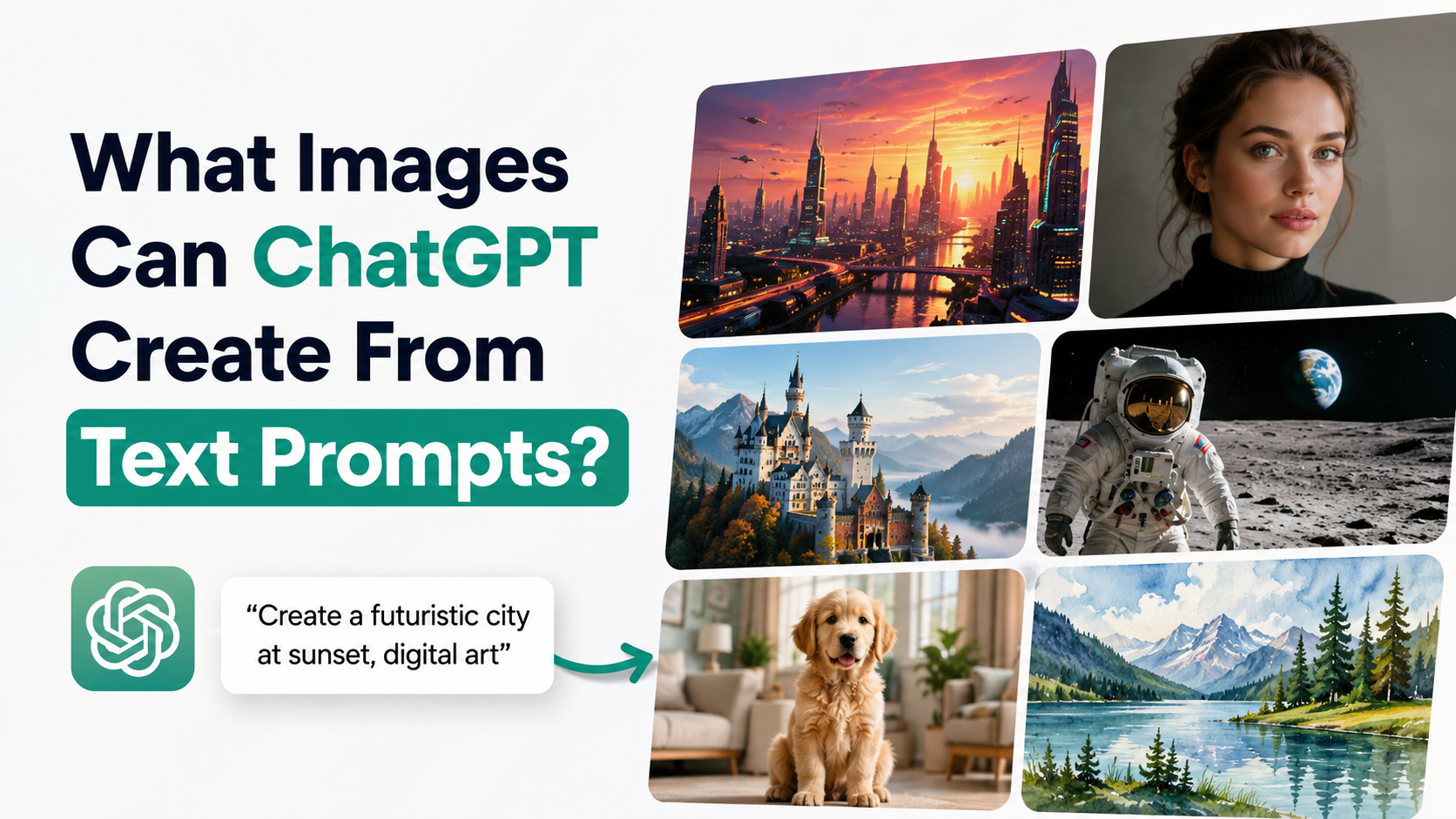
If you are searching for how to create image in ChatGPT, the practical answer is simple: describe the image you want in clear language, then refine the result with focused follow-up instructions. A detailed prompt helps ChatGPT understand the subject, setting, composition, mood, style and any non-negotiable details.
ChatGPT Images lets users create new images from a conversation, use an Images option in the interface, edit generated images, and upload an existing image for changes. It is available on web, iOS and Android. OpenAI's current guidance also notes that images can be saved, revisited and reused from the Images area.
This guide explains how to write strong prompts, improve a first result, and use image generation responsibly for personal, educational and business needs in India.
Key Takeaways
- Start with a clear goal: identify the subject, setting, style and intended use.
- Detailed prompts work best when they specify composition, lighting, colours and constraints.
- A prompt does not need to be long; one to three precise sentences can be effective.
- Improve results through small, specific follow-up edits instead of rewriting everything.
- Use aspect ratio deliberately for Instagram, YouTube thumbnails, presentations or print layouts.
- Do not use another person's likeness or private images without appropriate permission.
What You Need Before Creating an Image
You need access to ChatGPT on the web or its iOS or Android app. OpenAI states that ChatGPT Images is available across these platforms, and its help documentation lists ChatGPT Images 2.0 as available on all tiers. Feature availability and interface labels can still vary by account, plan and rollout. See OpenAI's current availability information.
Before writing a prompt, decide what the image must accomplish. For example:
- A restaurant owner may need a festive social-media post for Diwali.
- A student may need a clean visual for a presentation on renewable energy.
- A small business may need a product-background concept.
- A content creator may need a YouTube thumbnail concept in 16:9 format.
The intended use determines the right composition. A poster needs room for a headline; a product image needs the product to remain visually dominant; a presentation visual should avoid crowded details.
How to Create an Image in ChatGPT: Step by Step
1. Open a New or Existing Chat
Open ChatGPT and start a conversation. You can ask for an image directly in the message box. Alternatively, OpenAI's help guidance says you can select More and then Images, where that option appears in your interface.
You do not need specialised design terminology. Plain, direct language is enough.
2. State That You Want an Image
Begin with a clear instruction, such as:
Create an image of a modern Indian coffee shop interior.
Then add the details that make the visual useful rather than generic.
3. Add the Essential Visual Details
A strong image prompt usually answers these questions:
| Prompt element | What to specify | Example |
|---|---|---|
| Purpose | Where the image will be used | Instagram post for a bakery |
| Main subject | The central person, object or scene | Young baker arranging cupcakes |
| Action | What is happening | Placing a box on a counter |
| Setting | Location and background | Bright bakery in Bengaluru |
| Style | Visual treatment | Warm editorial photography |
| Composition | Camera angle and layout | Vertical frame, subject on the right |
| Lighting and colour | Mood and visual tone | Soft morning light, cream and terracotta palette |
| Constraints | What must not appear | No logos, no extra text |
OpenAI recommends grounding prompts in the image's purpose, main subject, action, setting and visual style. It also advises including framing, lighting and constraints when they matter. OpenAI Academy's image-prompt guide notes that clarity is generally more useful than clever wording.
4. Generate and Assess the First Result
After you submit the prompt, generation may take a few minutes depending on the request's complexity. Review the result against your original purpose rather than asking only whether it "looks nice."
Check:
- Is the main subject prominent enough?
- Does the layout suit the intended platform?
- Are the key objects present?
- Is the style consistent with your brand or project?
- Is any in-image text accurate and readable?
- Are there distracting objects, extra logos or irrelevant details?
5. Refine One Element at a Time
Use a focused follow-up message. Avoid giving five unrelated changes at once.
Useful instructions include:
- "Keep the same composition, but make the lighting warmer."
- "Remove the people in the background."
- "Make the product 25% larger and place it in the centre."
- "Use a cleaner background with more empty space at the top for a headline."
- "Change only the wall colour to muted sage green. Keep everything else the same."
OpenAI specifically recommends small, targeted revisions and direct feedback, because they are easier for the system to follow than broad instructions such as "make it better." Its guidance on refinement also recommends stating what should remain unchanged during precise edits.
A Detailed Prompt Formula That Works
Use this flexible formula:
Create a [style] image for [purpose] showing [main subject] [action] in [setting]. Use [composition], [lighting] and [colour palette]. Include [important details]. Avoid [unwanted elements]. Use [aspect ratio].
Here is a complete example for an Indian small business:
Create a polished vertical social-media image for an Indian handmade-soap brand. Show three natural soap bars on a light stone tray beside dried lavender and eucalyptus leaves, with soft window light from the left. Use a premium minimalist product-photography style, muted beige, sage green and lavender colours, and a clean background with empty space in the upper third for later text placement. No visible brand logos, no people and no additional words. Use a 4:5 aspect ratio.
This prompt works because it identifies the business purpose, subject, props, lighting, style, colour direction, layout and constraints.
Choosing the Right Aspect Ratio and Composition
Aspect ratio affects whether an image fits naturally into its final placement. ChatGPT Images supports generating images in different aspect ratios through an aspect-ratio picker or by including the desired ratio in the prompt. OpenAI's image editor documentation confirms both options.
| Intended use | Recommended orientation | Prompt instruction |
|---|---|---|
| Instagram feed post | Vertical | "Use a 4:5 vertical composition." |
| Instagram Story or Reel cover | Tall vertical | "Use a 9:16 vertical frame." |
| YouTube thumbnail | Horizontal | "Use a 16:9 landscape composition." |
| Presentation slide | Horizontal | "Use a wide 16:9 layout with space for a title." |
| Website banner | Wide horizontal | "Use a panoramic banner composition." |
| Product listing | Square or vertical | "Keep the product centred on a clean background." |
Do not rely on cropping later if a key subject sits too close to an edge. Instead, ask for safe space in the layout:
Leave generous empty space on the left for copy. Keep the main subject within the right two-thirds of the frame.
This is particularly useful for ad concepts, event posters, blog headers and retail creatives.
How to Get Better Text, Labels and Infographics
ChatGPT can follow instructions to add text within an image, but short and highly specific text is more dependable than dense copy. OpenAI recommends putting desired text in quotation marks or capitals, specifying font style, size, colour and placement, and keeping text brief. Its prompt guidance for text in images also suggests spelling unusual brand words letter by letter.

Try this format:
Create a clean workshop poster in a modern Indian editorial style. Add only the headline "CAREER DESIGN WORKSHOP" in bold white sans-serif text, centred at the top. Use a navy blue background with coral accents. No other text.
For charts, diagrams, menus or infographics, treat the generated image as a draft visual concept. Check every figure, label, date and spelling before publishing. If accuracy is essential, use ChatGPT to generate the illustration or layout concept, then add final text and data in a dedicated design tool.
Editing an Existing Image in ChatGPT
You can edit an image that ChatGPT generated or upload an existing image and explain the change you want. OpenAI says you can either describe an edit in the conversation or use the selection tool to highlight a specific area first. Learn more about editing images in ChatGPT.
For accurate edits, write two instructions:
- Name exactly what should change.
- Name what should stay the same.
For example:
Change only the shirt colour of the person in the foreground from blue to maroon. Keep the face, pose, background, lighting and camera angle unchanged.
When using the selection tool, remember that the highlighted area may not be perfectly precise and edits can extend outside it. Review the whole image after each change.
Using Reference Images
A reference image can help communicate a layout, object, product photo or desired visual direction. If you upload more than one image, label their roles clearly:
Image 1 is the product photo. Image 2 is the style reference. Create a new image using the product from Image 1 in the clean, hand-painted illustration style of Image 2. Keep the product shape and label placement unchanged.
Use clear spatial language such as "foreground," "left side," "behind," and "upper-right corner." OpenAI also advises keeping the number of reference images manageable and explaining how each image relates to the final result.
Common Prompt Mistakes and How to Fix Them
Being Too Vague
Weak prompt:
Make a nice image for my business.
Better prompt:
Create a clean Instagram image for a home-bakery business in Pune. Show a chocolate cake on a ceramic stand, soft natural light, warm brown and cream palette, vertical 4:5 composition, and empty space at the top for a short offer message.
Mixing Conflicting Styles
Avoid combinations such as "minimal, highly detailed, cluttered, photorealistic cartoon poster." Decide what matters most. If you want a blend, describe the relationship:
Use a realistic product photograph with subtle hand-drawn floral accents around the border.
Forgetting Constraints
If no text, logo, extra hands, additional products or background clutter is acceptable, say so directly. Constraints prevent drift:
Show only one product. No people, no visible logos, no text and no watermark-like marks.
Making Every Change at Once
If the first version is close, do not restart with a completely new paragraph. Preserve what works:
Keep the same scene and composition. Make only these changes: brighter daylight, fewer background plants and a more premium colour palette.
Responsible Use for Personal and Commercial Projects
Image generation is useful, but publication still requires human judgement. Review the final output for factual errors, accidental brand references, misleading details and unsuitable imagery before using it in advertising, education or public communication.
Be especially careful with real people. OpenAI advises using a reference photo for accuracy when generating images of yourself or others and ensuring you have permission to use that person's likeness. It also recommends requesting generic or ownable designs rather than imitating a specific brand, product or artwork. Read OpenAI's additional image-generation considerations.
If ChatGPT declines a request, do not try to bypass the safeguard. Reframe the creative brief in a safe, lawful and respectful way. OpenAI applies safety checks to image prompts, input images and generated outputs. Its ChatGPT Images system card describes these layers of protection.
Frequently Asked Questions
Can I create images in ChatGPT by typing a normal message?
Yes. You can describe the image you want directly in a ChatGPT conversation. Where available in the interface, you can also choose More and then Images before entering your prompt.
How detailed should a ChatGPT image prompt be?
It should be detailed enough to remove important ambiguity, not unnecessarily long. OpenAI says one to three clear sentences are often sufficient. Include the purpose, subject, setting, style and any critical constraints.
Can ChatGPT edit a photo I upload?
Yes. You can upload an image and describe the intended change. For a localised edit, use the selection tool when available, then state exactly what should change and what must remain the same.
Can I specify image size or shape?
You can specify an aspect ratio in your prompt, such as 16:9, 4:5 or 9:16. ChatGPT Images also provides an aspect-ratio option in its editor where available.
How do I save a generated image?
Open the image and use the available controls to save or download it to your device. OpenAI says created images are also stored in the Images area for browsing and reuse; deleting the conversation where an image was created removes it from that library.
Conclusion
Learning how to create image in ChatGPT is mainly about turning an idea into a clear visual brief. Start with the image's purpose, name the subject and setting, specify style and composition, then add practical constraints such as aspect ratio, text placement or elements to avoid.
Generate a first version, evaluate it against your real use case and make small, targeted revisions. With that workflow, ChatGPT can become a practical tool for creating concepts, social creatives, presentation visuals and product-image directions—while you retain responsibility for accuracy, permissions and final publishing quality.