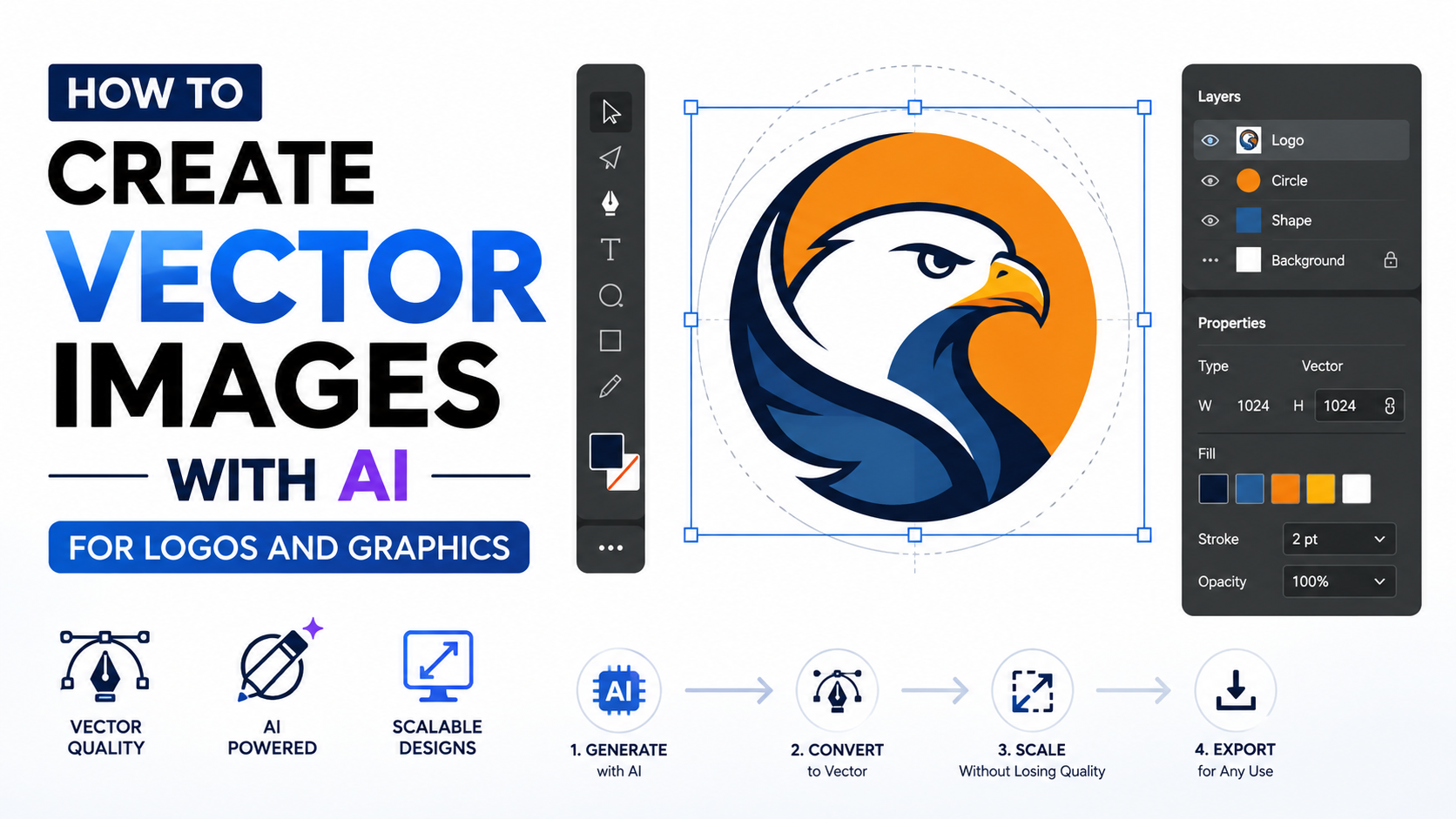

If you need a logo, icon, infographic, presentation graphic or print-ready illustration, you do not have to install Adobe Illustrator. Several browser-based design tools now let you draw paths, edit SVG files, collaborate with others and export scalable artwork.
The best choice depends on your goal. Figma is well suited to collaborative design and interface work, Vectr offers a beginner-friendly vector editor, Photopea combines vector and raster editing, and Canva is convenient for template-based graphics. More specialised options such as Corel Vector, Boxy SVG and SVG-Edit provide additional control over SVG files.
This guide explains where to create vector images online, how each tool works, which formats to use and what Indian freelancers, students, small businesses and content teams should check before exporting artwork.
Key Takeaways
- Figma runs in the browser and supports vector networks, collaboration and design hand-off.
- Vectr is a simple online editor that can export SVG, PNG and JPG files.
- Photopea can create vector graphics and trace bitmap images, then export SVG or PDF.
- Canva is useful for quick SVG editing and marketing graphics, but advanced print workflows may require another tool.
- Corel Vector supports professional file imports and exports, including SVG, SVGZ, EPS and PDF.
- Always inspect fonts, image tracing, colour mode and licensing before sending artwork to an Indian printer or client.
What Makes an Online Vector Editor Different?
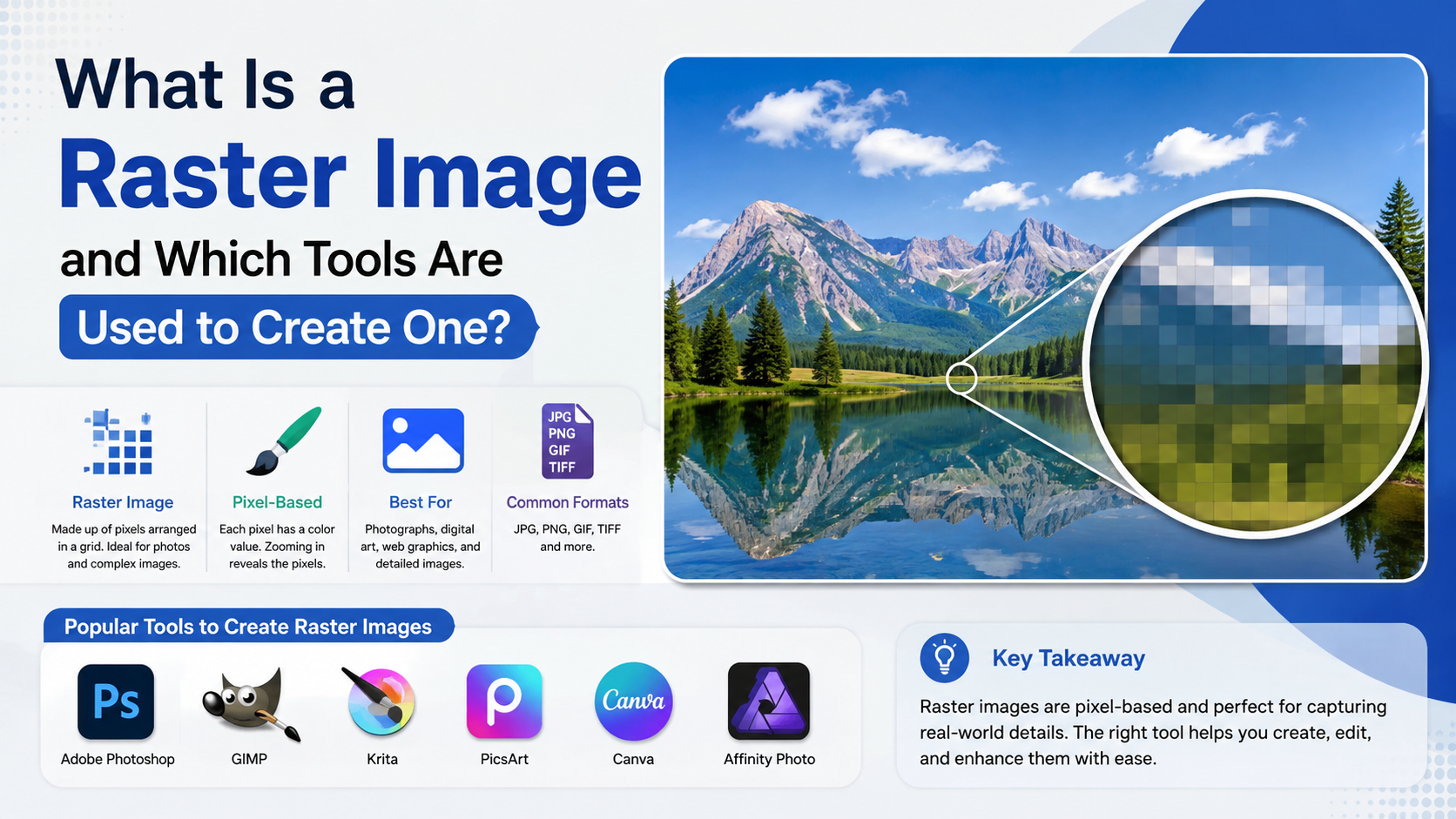
Vector artwork is built from paths, points, curves, fills and strokes rather than a fixed grid of pixels. As a result, a logo can be enlarged for a hoarding or reduced for a mobile icon without becoming pixelated.
Online vector editors provide these capabilities through a web browser. Your work is generally saved to an account or cloud workspace, although some services also support local downloads. A browser tool can be practical when:
- You work on a Windows, macOS, Linux or Chromebook computer.
- You collaborate with a client or team in different cities.
- You use a shared office or college computer.
- You want to avoid a large desktop installation.
- You need to open or export an SVG quickly.
However, browser software still depends on a stable connection for many features. Complex files, large embedded images and multiple artboards can also require substantial memory. Before starting a client project, test the editor and confirm that you can download the required format.
Best Places to Create Vector Images Online
Figma: Best for collaboration and interface graphics
Figma is a browser-based design tool available on Windows, Chrome, macOS and Linux. Its Pen tool creates vector networks, allowing paths to connect in multiple directions rather than following only one continuous chain. This is useful for icons, diagrams, wireframes and interface illustrations. Figma's official product page describes its browser workflow and collaboration model, while its help centre explains vector networks in detail. Figma vector networks
A practical Figma workflow is:
- Create a design file and set an appropriately sized frame.
- Use the Pen tool for custom paths or the Shape tools for basic geometry.
- Adjust fills, strokes, corner radii and alignment in the properties panel.
- Group related objects and name important layers.
- Export selected objects as SVG or PDF when the destination supports them.
Figma is particularly useful for an Indian startup team designing a website, app screens or a shared brand system. Its limitation is that it is not a dedicated pre-press application; confirm colour, bleed and PDF requirements with your printer.
Vectr: Best for beginners making straightforward artwork
Vectr positions itself as an online vector graphics editor and logo maker. Its official site states that users can create, edit, share and export designs as SVG, PNG and JPG files. Vectr
Use Vectr for:
- Simple logos and badges
- Social-media icons
- Basic diagrams
- Classroom assignments
- Cut-file artwork with uncomplicated shapes
To begin, open a new canvas, draw shapes or use the Pen tool, set fills and strokes, then export an SVG for scalable use. Export a PNG when a platform accepts only raster images.
Vectr's approachable interface can be easier than a full professional application. For advanced typography, complex gradients, detailed mesh work or sophisticated colour management, you may eventually need a more specialised editor.
Photopea: Best for mixing vector and raster editing
Photopea is an online editor that handles both bitmap and vector graphics. Its documentation explains that it includes vector tools and can export vector work as SVG or PDF. Photopea vector graphics Photopea bitmap vectorisation
Photopea is valuable when you need to turn an existing JPG or PNG into editable paths:
- Open the bitmap in Photopea.
- Use the vectorisation or tracing workflow for a high-contrast source.
- Inspect and simplify the resulting paths.
- Correct shapes, colours and unwanted points with the vector tools.
- Export as SVG or PDF.
Tracing works best with clean artwork, strong contrast and limited colours. A photograph will usually produce a complicated collection of paths that needs extensive cleanup. For a logo supplied by a client, request the original vector file whenever possible instead of tracing a low-resolution screenshot.
Canva: Best for quick marketing graphics and SVG edits
Canva's official SVG editor page says users can upload and edit SVG files, resize or transform them, and use SVG output in websites, advertisements and social content. Canva SVG editor
Canva suits users who need speed and templates, such as:
- Instagram and LinkedIn graphics
- Event posters
- YouTube thumbnails
- Simple infographics
- Business cards and announcements
A common workflow is to upload an SVG, place it in a layout, adjust its size and colours where supported, and export the finished design. Check the download options available to your account before promising an SVG deliverable to a client.
Canva is not a complete replacement for Illustrator's path-editing and pre-press controls. Template elements may also have licensing conditions, so review the asset licence and ensure that fonts and stock graphics are permitted for commercial use.
Corel Vector: Best for broader professional file compatibility
Corel's documentation for Corel Vector lists support for importing GVDESIGN, PDF, SVG, SVGZ, EPS, JPEG, PNG and GIF files. It lists SVG, SVGZ, PNG, JPEG and PDF among the export formats. Corel Vector import and export

This makes Corel Vector worth considering when a client or print vendor sends files in several formats. A useful process is:
- Import the supplied artwork.
- Check whether text remains editable or has been converted to outlines.
- Verify linked or embedded images.
- Set the page size and export settings.
- Export a proof PDF and an SVG for digital use.
Ask an Indian print shop whether it prefers PDF/X, outlined text, CMYK artwork or another specification. Export compatibility does not guarantee that every effect, font or blend will appear identically in another application.
Boxy SVG and SVG-Edit: Focused SVG workflows
Boxy SVG is designed around the SVG format and is available through a browser-based editor. Its official project information describes a workflow for creating, refining and exporting SVG files for web pages, presentations and product visuals. Boxy SVG project
SVG-Edit is an open-source SVG editor that runs in a browser. The project repository recommends its current V7 version and provides configuration documentation. SVG-Edit on GitHub
These tools are appropriate when:
- Your final deliverable is specifically SVG.
- You prefer a less template-driven interface.
- You need a lightweight editor for icons or diagrams.
- You want to inspect or modify SVG markup-oriented artwork.
Because open-source deployments can vary, use the official project repository or a trusted host. Avoid uploading confidential client files to an unknown third-party instance.
How to Create a Vector Image Online: A Reliable Workflow
1. Define the output before drawing
Decide whether the artwork is for a website, mobile app, social post, laser cutter, T-shirt, signboard or offset print. The destination determines canvas size, colour settings and export format.
2. Build with shapes and paths
Use rectangles, circles and polygons for geometric artwork. Use the Pen tool for custom silhouettes. Keep related objects grouped and name layers clearly; this makes revisions easier when a client requests a Hindi or English version.
3. Use typography carefully
Web fonts may not be installed at the printer or client's computer. Keep a live-text copy for editing, then duplicate the design and convert the final text to outlines when the delivery specification requires it. Check Devanagari, Tamil, Bengali or other Indian-script characters at the actual output size.
4. Keep raster images separate
Placing a JPG inside an SVG does not automatically make that photograph a vector. If a bitmap must become vector artwork, trace it and inspect the paths. For photos, deliver the original high-resolution raster separately.
5. Export and test
Export an SVG for scalable web or app use, a PDF for many print workflows, and a PNG preview when requested. Reopen the exported file in a second viewer or editor. Confirm that:
- Text and symbols appear correctly
- Transparency is intentional
- Strokes have not changed unexpectedly
- Images are embedded or linked as required
- The page size matches the brief
- The file does not contain hidden drafts or unused objects
Choosing the Right Tool
| Requirement | Recommended option | Reason |
|---|---|---|
| Team collaboration and UI design | Figma | Browser-based files, shared links and vector networks |
| Beginner logo or icon | Vectr | Straightforward vector editing and common exports |
| Bitmap tracing plus vector cleanup | Photopea | Vectorisation and SVG/PDF export |
| Fast social and marketing layouts | Canva | Templates and SVG editing workflow |
| Mixed professional file formats | Corel Vector | Imports and exports including EPS, SVG and PDF |
| Lightweight SVG-focused work | Boxy SVG or SVG-Edit | Focused browser-based SVG editing |
Important Limitations and Safety Checks
Online tools can change features, account limits or export availability. Review the current terms and plan details on the product's official website before purchasing or accepting a project.
Do not upload unreleased product designs, government documents, customer data or confidential brand assets unless the service's privacy and storage terms meet your requirements. Keep an offline copy of the source SVG or native project file.
Finally, distinguish between an SVG file and a professionally prepared print file. A printer may still request bleed, embedded fonts, outlined text, colour-profile information or a specific PDF standard. Confirm those requirements before exporting.
Frequently Asked Questions
Can I create a logo online without Illustrator?
Yes. Figma, Vectr, Canva, Photopea, Corel Vector, Boxy SVG and SVG-Edit can all support parts of a logo workflow. For a simple logo, use shapes and paths, keep a layered source file, and export an SVG plus a print-ready PDF if requested.
Which online tool is best for converting PNG to SVG?
Photopea provides an official bitmap-vectorisation workflow and can export the resulting vector layers as SVG or PDF. The quality depends heavily on the source image; clean, high-contrast logos trace more successfully than photographs.
Is Canva suitable for a professional logo?
Canva can be suitable for a simple brand mark and quick layout work. Before delivery, verify that every template element, font and stock asset has appropriate commercial-use rights. If a client needs precise path editing or specialised print specifications, use a dedicated vector editor as well.
Will an SVG always print correctly in India?
No. SVG is excellent for scalable digital artwork, but printers may prefer PDF and may require specific colour, bleed and font settings. Ask the chosen print vendor for its exact file specification before sending the final artwork.
Can I work offline with an online vector editor?
Some browser editors may offer local or installed versions, but availability varies by product and account. Download the source file regularly and test your workflow without an internet connection before relying on it during travel or at a location with unreliable connectivity.
Conclusion
The best answer to "where to create vector images" depends on the job. Choose Figma for collaboration, Vectr for a gentle learning curve, Photopea for tracing and mixed editing, Canva for fast marketing layouts, and Corel Vector or SVG-focused editors for broader SVG workflows.
Start with a tool that exports the format your client, website or printer actually needs. Save an editable source, check fonts and licensing, test the exported file, and confirm print specifications with the vendor. With that process, Indian creators can produce dependable vector artwork online without Illustrator.