
A realistic AI portrait generator can turn a well-chosen photo of you into a polished headshot, lifestyle image, studio portrait, or creative social-media visual. The most convincing results do not come from a single vague prompt. They come from giving the tool a clear reference image, specific visual direction, and a careful review process.
This guide explains how to create a believable AI portrait from your own photo, improve facial consistency, avoid common visual errors, and make responsible choices when uploading and sharing images in India.
Key Takeaways
- Begin with a clear, well-lit photo that shows your face without filters, sunglasses, or heavy shadows.
- Use a detailed prompt covering pose, clothing, setting, lighting, framing, and the level of realism you want.
- Generate multiple variations, then refine one result with small, targeted edits.
- Treat AI portraits as creative or professional visuals—not as proof of identity or an official photograph.
- Upload only photos you have the right to use, and get clear consent before using anyone else's likeness.
- Label highly altered portraits when context could make viewers mistake them for documentary photographs.
What Makes an AI Portrait Look Realistic?
Realism is more than sharp skin texture or cinematic lighting. A convincing portrait preserves recognisable facial structure while keeping the details coherent: eyes aligned naturally, hands anatomically plausible, hair matching the lighting, and clothing behaving like real fabric.
A good realistic AI portrait generator uses your uploaded image as a visual reference and combines it with written instructions. However, reference images guide the result rather than guaranteeing an exact copy. Midjourney, for example, notes that references are used as inspiration and that portraits of real people may not reproduce an exact likeness. Its official guidance also recommends pairing the reference with a detailed text prompt.
The strongest results usually balance two priorities:
| Priority | What to control |
|---|---|
| Identity | Face shape, hairstyle, skin tone, age range, glasses, beard, and distinctive features |
| Photography | Pose, crop, camera angle, background, light direction, wardrobe, and mood |
If the portrait needs to look like a conventional LinkedIn headshot, keep the direction restrained. If you want a dramatic editorial image for Instagram, describe the artistic choices precisely while retaining realistic facial features.
Choose the Right Source Photo
The input photo has a major effect on output quality. AI can change a setting or outfit, but it cannot reliably recover facial detail that is blurred, hidden, or badly lit.
Use a Face-Centred, High-Quality Photo
Choose a recent photo with these characteristics:
- Your full face is visible, preferably looking towards the camera or only slightly turned.
- Lighting is even and natural, such as window light or soft outdoor shade.
- The image is in focus, with no motion blur or excessive beauty filtering.
- Your forehead, eyes, nose, jawline, and hairline are visible.
- There are no dark sunglasses, masks, hands across the face, or strong coloured lighting.
A simple smartphone portrait can work very well if it is sharp and evenly lit. Avoid screenshots, compressed images forwarded repeatedly through messaging apps, or photos where your face is tiny within a large group.
For consistency across different poses, it can help to upload more than one suitable reference image when the selected service allows it. Adobe's current Firefly guidance describes using a portrait reference to help keep the same face across generations, while prompts control pose, framing, lighting, and texture. Read Adobe's official tutorial.
Prepare the Photo Without Changing Your Identity
Crop distractions from the edges, straighten the photo if necessary, and correct obvious exposure problems. Do not use aggressive face-slimming, skin-smoothing, or eye-enlarging filters before uploading. Those edits can give the model inconsistent signals about what you actually look like.
If you wear spectacles regularly, use a reference photo with them. If you want a portrait without spectacles, state that clearly in the prompt rather than relying on the tool to guess.
Pick a Tool That Supports Photo-Based Editing or References
Use a service that explicitly allows you to upload an image and describe the desired result. The exact interface differs by provider, but the workflow is similar: upload the photo, provide instructions, generate variations, then edit the selected output.
For example, ChatGPT Images supports creating images and editing an uploaded image through written instructions. It also offers a selection-based editor for directing a change to a particular part of an image. Adobe Firefly provides reference-image controls for composition and style, including an adjustable strength setting for composition matching. Adobe's documentation explains that the strength control determines how closely the generated result follows the reference composition.
Before uploading, review the provider's current terms, privacy information, storage options, and deletion controls. Do not assume that all services handle uploads, generated images, or training preferences in the same way.
Write a Prompt That Directs the Portrait Clearly
A useful prompt describes a photograph, not merely a person. Start with the intended use and add visual details in a logical order.
A Reliable Portrait-Prompt Framework
Use this structure:
Create a realistic portrait of the person in the reference photo. [Pose and expression], wearing [clothing], in [location/background]. Use [lighting], [camera framing], and [visual mood]. Preserve natural skin texture, facial proportions, and the person's recognisable features. Avoid text, logos, distorted hands, and an overly airbrushed appearance.
Here are practical examples for an Indian audience.
Professional headshot
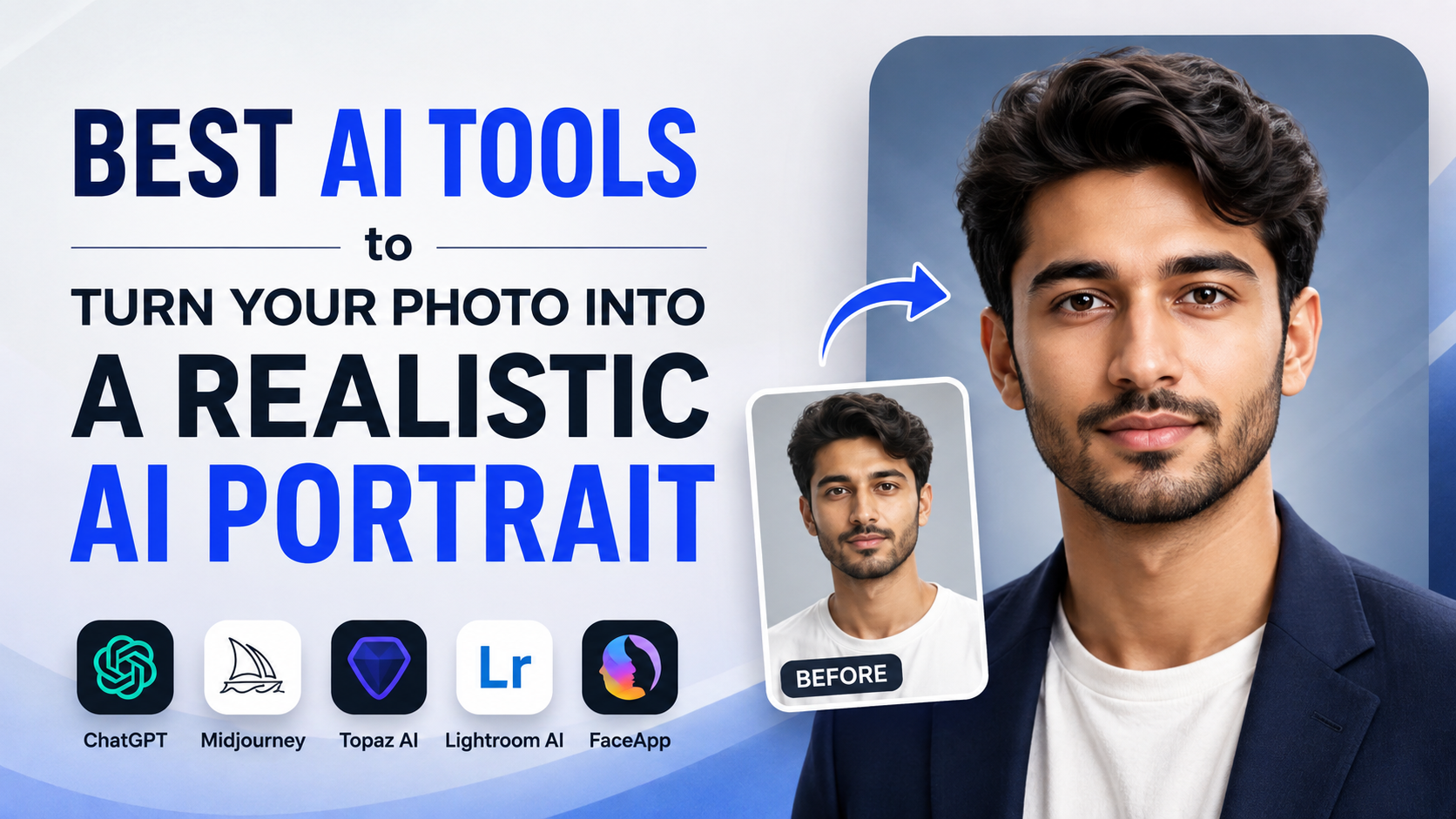
Create a realistic, natural corporate headshot of the person in the reference photo, looking at the camera with a relaxed, confident expression. Wear a navy-blue blazer and plain light shirt. Use a clean warm-grey studio background, soft window-style lighting, chest-up framing, and natural skin texture. Preserve facial proportions and hairstyle. No text, no logo, no excessive retouching.

Creator or freelancer profile image
Create a realistic environmental portrait of the person in the reference photo working in a modern, uncluttered home office in Bengaluru. Smart-casual clothing, seated naturally near a desk, soft daylight from one side, shallow depth of field, medium close-up, friendly but professional expression. Preserve the person's actual facial features and skin tone.
Festive editorial portrait
Create a realistic editorial portrait of the person in the reference photo wearing a simple elegant kurta, standing in a softly lit courtyard during an evening celebration. Warm ambient lights in the background, natural expression, waist-up composition, realistic fabric texture, subtle depth of field. Keep the face recognisable and avoid artificial-looking skin.
Avoid instructions such as "make me attractive" or "make it look professional" without detail. They leave too much to the generator's interpretation. Specify what professional means: clean background, neat clothing, relaxed expression, and soft frontal lighting.
Generate, Compare, and Refine in Small Steps
Your first output is a draft. Generate several options, then choose the image that best preserves your identity before making more changes.
Review the Portrait at Full Size
Check these areas before downloading:
- Eyes: iris direction, eyelids, reflections, and any mismatch between the two eyes.
- Teeth and smile: natural spacing and realistic gums; avoid unnaturally uniform teeth.
- Hairline and ears: look for missing strands, warped edges, or jewellery blending into skin.
- Hands: if visible, count fingers and inspect jewellery, nails, and skin texture.
- Clothing: examine collars, buttons, fabric folds, and patterns.
- Background: look for doubled objects, distorted signage, or unreadable text.
Do not try to fix everything in one large rewrite. Make one request at a time, such as:
- "Keep the face unchanged; replace only the background with a neutral studio backdrop."
- "Keep the expression and hairstyle; change the shirt to a plain white linen shirt."
- "Reduce skin smoothing and retain realistic pores, fine lines, and natural under-eye texture."
- "Correct the left hand so it is outside the frame."
This incremental approach protects the parts that already look right. Some editors allow area selection, but OpenAI notes that selections may not be exact and changes can extend beyond the highlighted region. Its image-editing guidance recommends naming the specific area in your instruction.
Avoid the Most Common AI Portrait Mistakes
Even advanced generators can produce errors. Knowing what to request makes the portrait more believable.
| Problem | Likely cause | Better instruction |
|---|---|---|
| Face looks generic | Reference is weak or prompt focuses only on style | "Preserve the reference person's face shape, hairstyle, skin tone, and distinctive features." |
| Skin looks plastic | Excessive glamour or beauty language | "Natural skin texture, realistic pores, no beauty filter, minimal retouching." |
| Face changes after edits | Too many changes at once | Edit background, outfit, and expression in separate steps. |
| Background looks artificial | Overly complex scene request | Use a simple location and one clear lighting direction. |
| Hands or accessories are wrong | Full-body composition adds complexity | Crop to chest-up or keep hands out of frame. |
| Text is unreadable | Image models are not dependable for small text | Add names, logos, and contact details later in a design tool. |
Be especially cautious with identity-based prompts. Asking the tool to change ethnicity, age dramatically, or facial structure may produce an attractive image that no longer functions as a realistic portrait of you.
Privacy, Consent, and Responsible Use in India
Your face photo is personal data. Upload it only to a service you trust, using an account you control, and avoid sharing images containing identity documents, school IDs, office badges, home addresses, or other sensitive information.
India's Digital Personal Data Protection Act, 2023 describes consent as free, specific, informed, unconditional, unambiguous, and expressed through clear affirmative action. It also provides for withdrawal of consent where consent is the basis of processing. See the official Act published by MeitY. For everyday portrait creation, the practical standard is straightforward: use your own photograph, and obtain permission before uploading or publishing a portrait of another person.
Never use a realistic AI portrait to:
- Impersonate someone or mislead an employer, client, financial institution, or public authority.
- Create intimate, humiliating, or harmful imagery of another person.
- Present an AI image as an official identity, visa, examination, or government-document photograph.
- Suggest that a person attended an event, endorsed a product, or made a statement when they did not.
For client work, political content, journalism, or sponsored posts, disclose meaningful AI alteration. Transparency protects both your reputation and the people viewing the image.
Some systems attach provenance information to outputs. Content Credentials are designed to provide a record of an asset's origin and editing history, although they are not a universal guarantee that every image is authentic or unaltered. Content Credentials' official glossary explains how this provenance information can indicate whether AI was involved.
Frequently Asked Questions
Can I create a realistic AI portrait using just one selfie?
Yes, a single sharp, well-lit selfie can be enough for a headshot or close-up portrait. For more varied poses or a series of images, use multiple consistent reference photos if the tool supports them. More references can help the generator understand your facial features from different angles.
What is the best photo size for an AI portrait?
Use the clearest original image available rather than enlarging a small image artificially. Focus, lighting, and face visibility matter more than a particular pixel number. Check your chosen tool's upload limits; for example, ChatGPT's file-upload guidance lists a 20 MB limit for individual images. See the official upload FAQ.
Can an AI portrait replace my official passport or ID photo?
No. Use photographs that meet the relevant authority's rules for passports, visas, Aadhaar-related processes, examinations, or other official purposes. An AI-generated portrait may alter details or fail authenticity requirements, even if it looks convincing.
Why does the generated image not look exactly like me?
Image generators interpret a reference rather than performing a guaranteed identity-preserving copy. Improve the result with a sharper face-forward photo, clear instructions about your distinctive features, and smaller edits after selecting the closest initial variation.
Is it safe to post an AI portrait on LinkedIn or Instagram?
It can be appropriate when the image truthfully represents you and does not mislead viewers about credentials, employment, events, or achievements. For a heavily altered or fictional setting, a simple disclosure such as "AI-assisted portrait" is a sensible choice, especially in professional or commercial contexts.
Conclusion
A realistic AI portrait generator works best when you treat it like a photography brief: begin with a clear photo, describe the final image precisely, compare several outputs, and refine one detail at a time. Keep the portrait natural by preserving your recognisable features and avoiding excessive skin smoothing or dramatic identity changes.
Use only images you are entitled to upload, protect personal information, and be transparent when an AI-created portrait could be mistaken for a real photograph. Start with a simple professional headshot prompt, assess the result at full size, and build more creative variations only after the likeness feels genuinely yours.